Table of Contents
In this post we will discuss the AirVoice Wireless APN Settings in (November, 2026) for Android and iPhone devices. AirVoice is basically an MVNO from AT&T. In simple words, they purchase the minutes and data from AT&T and resell them to its users. Hence, they are using the infrastructure of the AT&T mobiles.
You can use these settings for both mobile and MMS settings. Please make sure to restart your device after settings. These settings can be used in any version of IOS and Android. If you have purchased your new phone directly from AirVoice. Than, you have your settings ready. Therefore, you can skip these settings. But if you are switching from any other network, than follow these settings.
[su_note note_color=”#f2acac” radius=”4″]Please note: It is very IMPORTANT that you follow all the formatting shown in the APN text settings.[/su_note]
How To Change APN Settings?
Please visit this page to check how you can access APN settings in your device. Either IOS or Android and than set the values accordingly.
AirVoice Wireless APN Settings
- Name: Airvoice
- APN: att.mvno
- Proxy: 66.209.11.33
- Port: 80
- Username: Leave it blank
- Password: Leave it blank
- Server: Leave it blank
- MMSC: http://mmsc.cingular.com
- MMS proxy: 66.209.11.33
- MMS port: 80
- MCC:
- MNC:
- Authentication Type: PAP
- APN Type: default,mms
- APN Protocol: Leave the default settings as it is
- APN Roaming Protocol:
- Bearer:
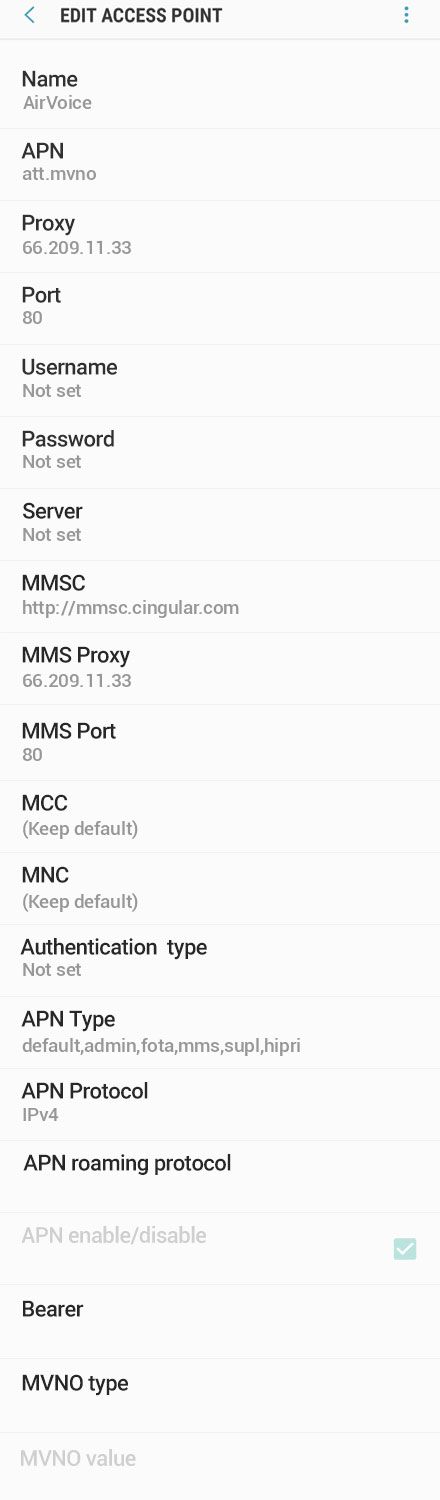
Settings Image:
Check the below image to double confirm your settings.
Customer Service Number: 888-944-2355
Website: airvoicewireless.com
Read Also:
- LycaMobile APN Settings – Step By Step Setup Guide
- Unreal Mobile APN Settings – Step By Step Setup Guide